

Netflix parental controls
Follow these step by step instructions to set up viewing restrictions on Netflix
Introduction to Netflix
With over 214 million global paid memberships in 2021, Netflix is one of the top streaming services for movies and shows. It contains content for all age groups, including mature content that many parents likely want to restrict their children from seeing. We’ve put together a guide on how to set up viewing restrictions and use other parental controls available on Netflix.
Does Netflix Have Parental Controls?
Because Netflix is a paid for app, there are some good parental controls built in. These allow you to restrict access to films and shows based on their maturity level. Once you’ve created a profile for your child then this will apply on any device they log into Netflix on.
How to Set Up Parental Controls on Netflix
Netflix makes it simple & convenient to set up parental controls and restrict your child’s viewing. We will provide more details on the following steps below:
- Log in and Manage Profiles
- Set up a profile for your child
- Update Viewing Restrictions
- Select a Profile Maturity Rating
- Block Specific Shows & Movies with “Title Restrictions”
- Save all Viewing Restrictions changes
- Lock all adult profiles with a PIN
Continue reading for details on this process & screenshots to help you follow along.
-
Step 1: Log In and Manage Profiles
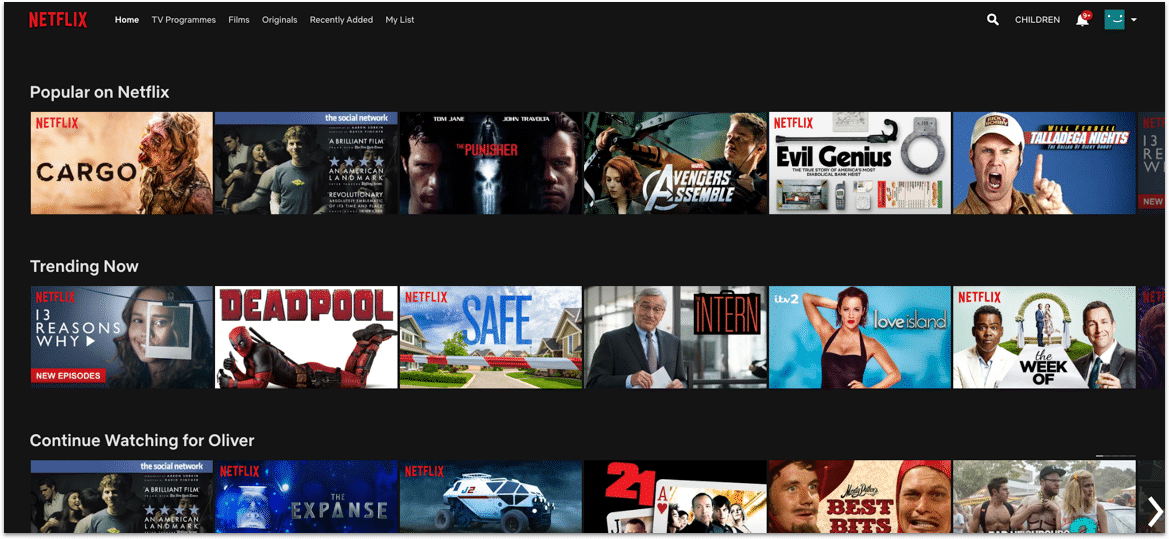
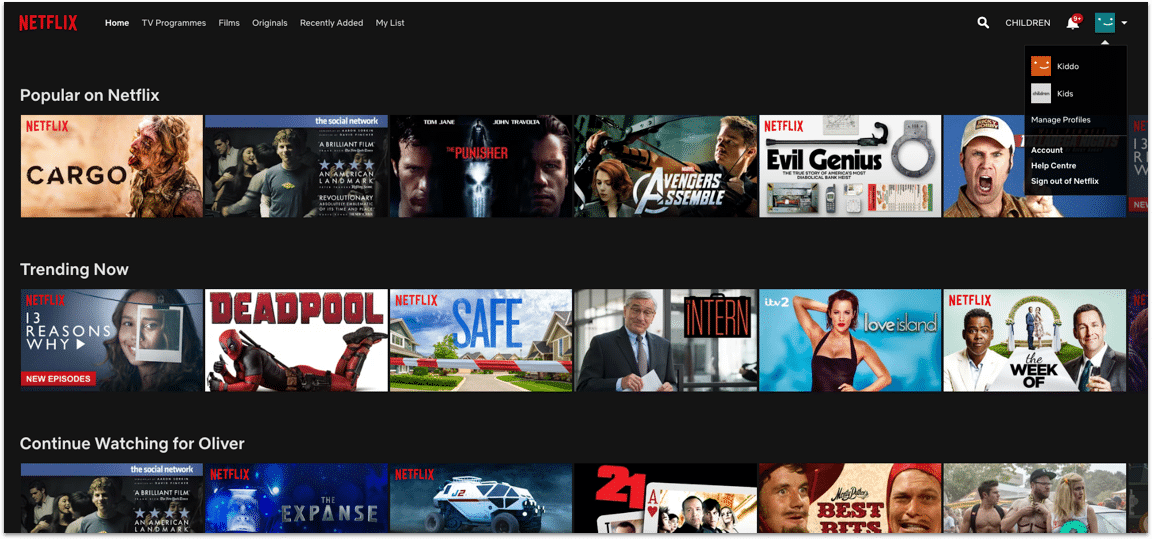
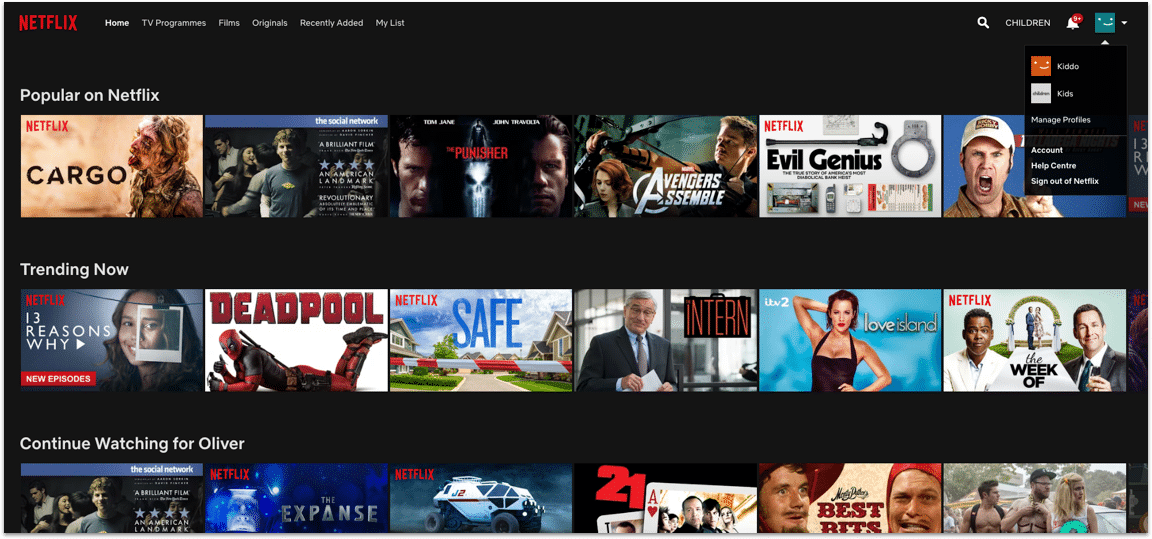
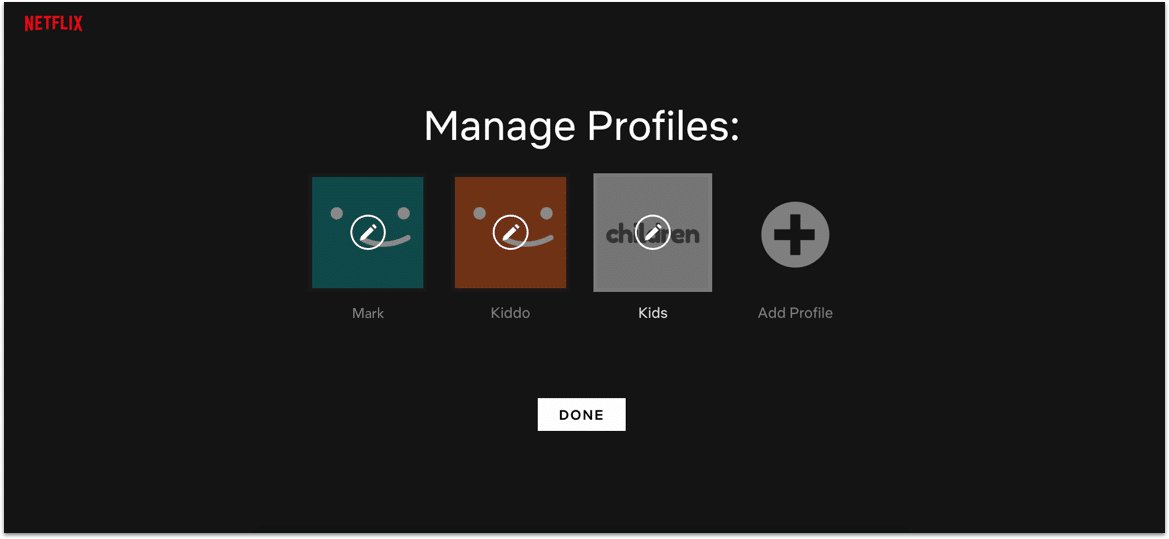
Log into your Netflix account, then select “Manage Profiles” from the login screen, or by hovering over your profile icon in the top-right corner of the Browse page.

-
Step 2: Set Up a Profile for Your Child
From the “Manage Profiles” screen, select “Add Profile” to set up a new profile. Name the profile after your child, and check the box next to “Kid” to enable the “Netflix Kids” experience (Netflix kids provides a simplified interface, limits TV and movies to content deemed appropriate, and prevents the child from accessing any account settings).
-
Step 3: Update Viewing Restrictions on Your Kids’ Netflix Profile
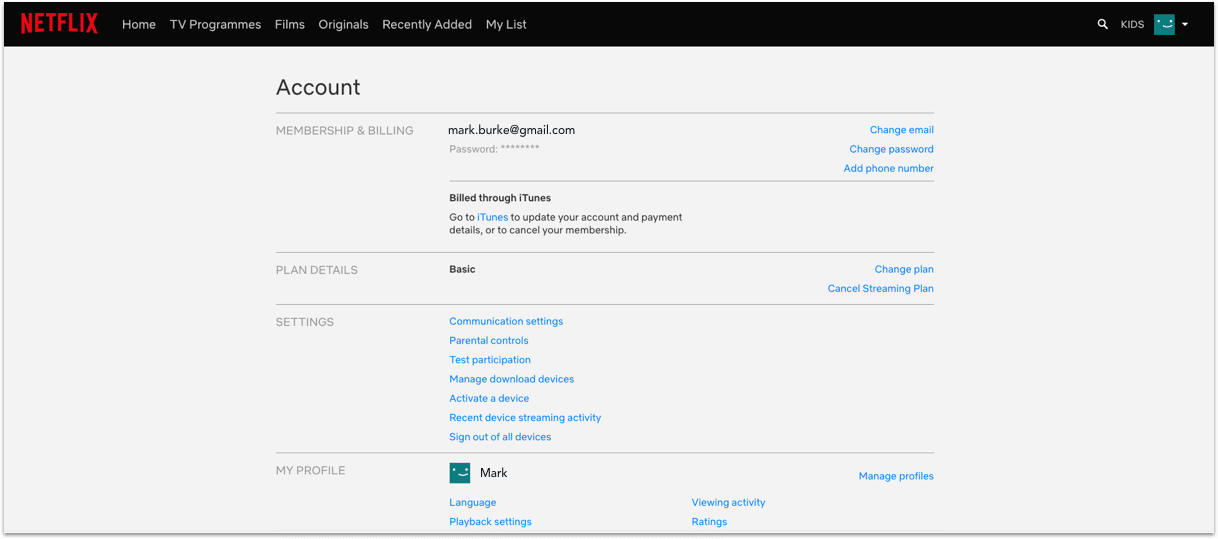
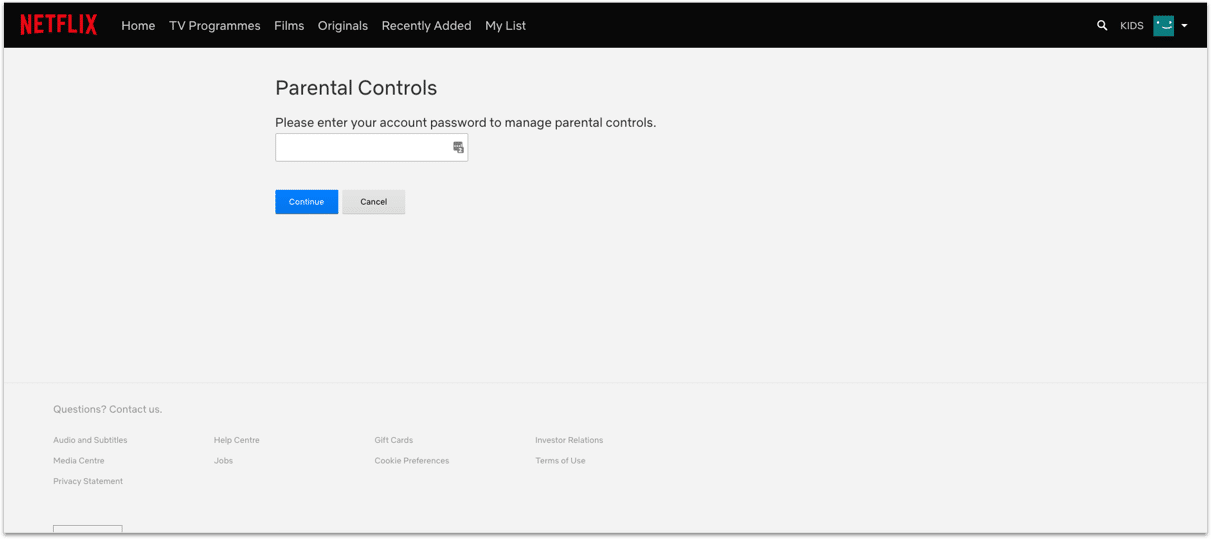
Navigate to the “Account” page from your profile icon in the top-right corner of the screen. In the “Profile & Parental Controls” section, open the child’s profile you want to update. Select “Change” next to “Viewing Restrictions”, and enter your password when prompted.
-
Step 4: Select a “Profile Maturity Rating” to Limit Content by Rating
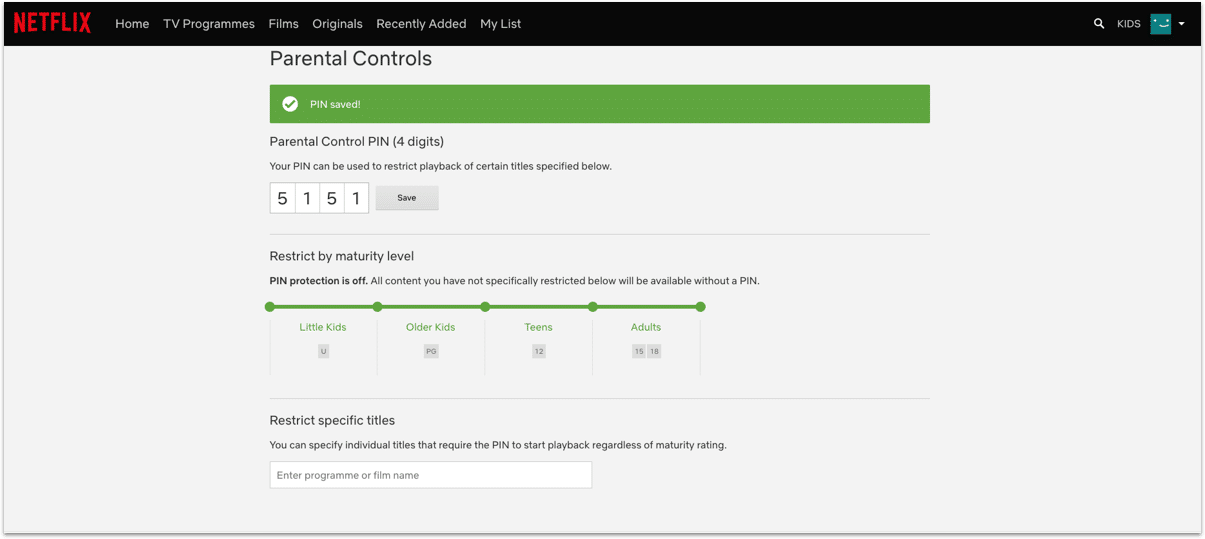
After confirming your password, you should be presented with a sliding scale, allowing you to select ratings including TV-Y, TV-Y7, G, PG, PG-13, Tv-14, R, TV-MA, and NC-17. Choose the Rating you deem appropriate for your child. When logged into this profile, Netflix will only play titles up to the selected Maturity Rating.
-
Step 5: Block Specific Shows & Movies via “Title Restrictions”
Also from the “Viewing Restrictions” page, Netflix gives you the ability to block specific shows and movies via search. In the text box, search for any specific shows that you don’t want your child to see, despite the fact that they may meet the Maturity Rating selected above.
-
Step 6: Save Your Viewing Restriction Settings
Be sure to select “Save” at the bottom of the screen before leaving the Viewing Restrictions screen to ensure that these settings are applied.
-
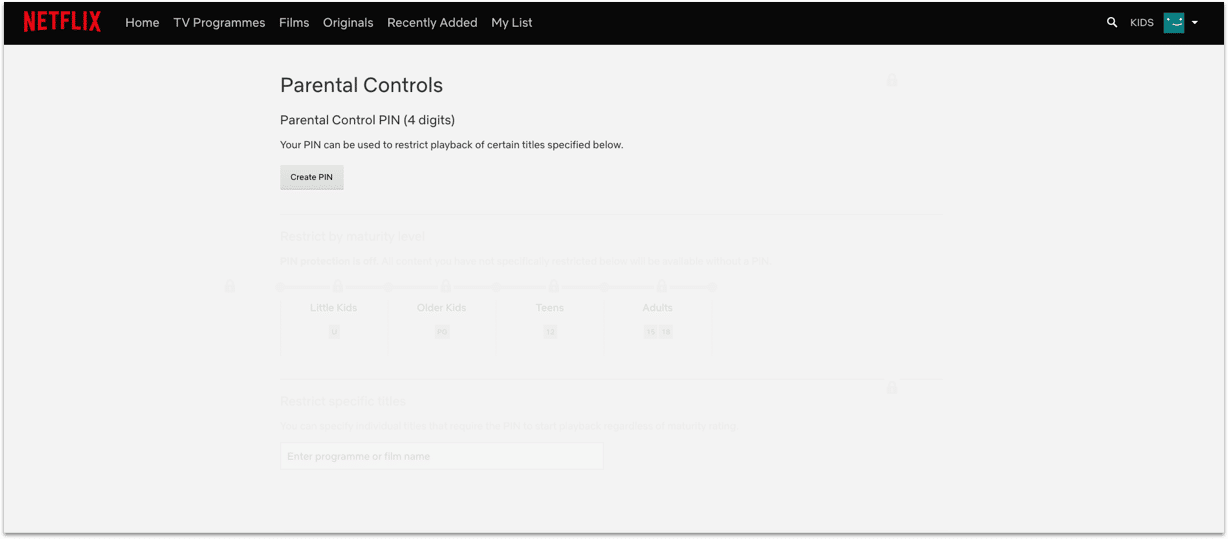
Step 7: Lock All Adult Profiles Via PIN
Now that your child’s content has been restricted, you’ll want to make sure they can’t sneak around these settings by simply logging into another profile without viewing restrictions. To do this, navigate back to the Accounts page, and select your own profile under the “Profile & Parental Controls”. Find the “Profile Lock” option, and click “Change”. Then, check the box for “Require a PIN to access Joe’s profile and enter the PIN you’d like to use. Also check the box next to “Require ___’s PIN to add new profiles” to avoid your child or other users creating additional profiles. Finally, select “Save” to apply these settings. Repeat this process for all unrestricted/adult profiles so that your child has to watch via their own.
How to Monitor Your Child’s Netflix Activity
You may not be there 24/7 to make sure your Netflix parental controls are working effectively, but luckily, Netflix provides the option to download viewing history from any of your profiles. Visit your Account page, select the desired profile under “Profile & Parental Controls”, and select “Viewing Activity”. This should show you the profile’s viewing history. You will also see the options to “Show More” in the bottom left, or “Download All” in the bottom right, which will export the entire viewing history to a .csv.
Other Parental Control Guides
We know how difficult it can be to limit your child’s screen time to safe and appropriate content. That’s why we’ve created guides for setting up parental controls on other popular platforms like Snapchat, YouTube, Instagram, and more.
Set up More Restrictions & Parental Controls Using Screen Time
The built-in parental controls on your favorite apps aren’t always enough to block all the content you deem inappropriate for your child. Furthermore, these controls only limit content, and don’t allow restrictions for how much time your child spends on the app (or when). The Screen Time app for Android, iOS, and Kindle allows you to monitor your child’s screen time, web history and messaging, block specific apps, track your family’s location, and much more.